
Watching videos, sharing photos, or browsing content is often more enjoyable on a large screen than on a smartphone. Fortunately, you don’t need a complicated setup to display your iPhone content on a television. With the right connection method, you can mirror your iPhone to a TV wirelessly or use a cable.
Whether you have a Samsung, LG, Sony, Roku, or another Smart TV, there are several ways to connect your devices. Some televisions support Apple’s built-in AirPlay technology, while others require a third-party application or an HDMI adapter.
In this guide, we’ll explain how to mirror an iPhone to a TV, explore the available connection methods, and share some practical troubleshooting tips.
What Does It Mean to Mirror an iPhone to a TV?
iPhone screen mirroring allows you to display your phone’s screen on a television in real time. Instead of watching everything on a small display, you can see your apps, photos, presentations, websites, and other content on a much larger screen.
It’s particularly useful when:
- Sharing vacation photos and videos with family or friends.
- Watching personal video recordings on a TV.
- Displaying presentations or documents during meetings.
- Playing mobile games on a bigger screen.
- Following tutorials or browsing websites together.
It’s important to understand the difference between screen mirroring and casting. Mirroring duplicates your entire iPhone display, while casting sends selected media, such as a video or photo, directly to the TV. The latter allows you to continue using your phone independently.
Method 1: Mirror Your iPhone to a TV Using AirPlay
AirPlay is Apple’s wireless streaming technology. It’s one of the easiest ways to connect an iPhone to a compatible Smart TV or Apple TV.
Before getting started, make sure your television supports AirPlay and both devices are connected to the same Wi-Fi network.
Follow these steps:
- Turn on your television and make sure AirPlay is enabled in its settings.
- Connect your iPhone and TV to the same Wi-Fi network.
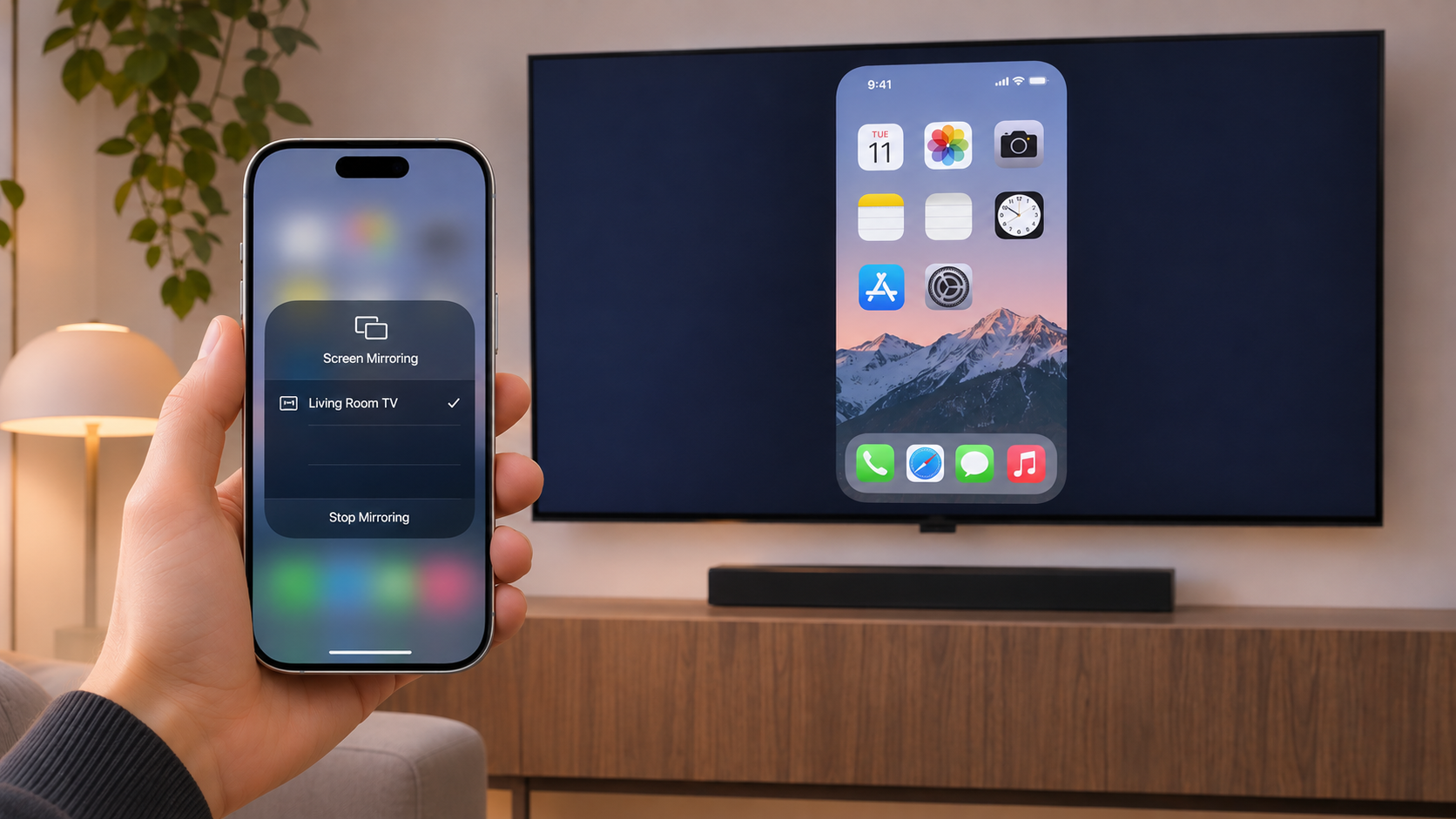
- Open Control Center on your iPhone by swiping down from the top-right corner.
- Tap Screen Mirroring.
- Select your television from the list of available devices.
- Enter the passcode displayed on your TV if prompted.
Once connected, your iPhone screen should appear on the television. You can open applications, browse photos, or navigate through your phone while everything is displayed on the larger screen.
To disconnect, open Control Center, tap Screen Mirroring, and select Stop Mirroring.
AirPlay is convenient, but it has one limitation: not every Smart TV supports it. If your television doesn’t appear in the device list, you’ll need another connection method.
Method 2: Use a Screen Mirroring App
If your TV doesn’t support AirPlay, a dedicated screen mirroring application can provide an alternative.
One example is DoCast, an app for iPhone and iPad that allows users to connect to different Smart TVs and streaming devices. It supports Chromecast, Roku, Fire TV, and DLNA-compatible televisions.
Here’s how to use it:
- Download DoCast from the App Store.
- Connect your iPhone and television to the same Wi-Fi network.
- Open DoCast and wait for it to discover available devices.
- Select your television from the device list.
- Tap the Screen option.
- Adjust the available mirroring settings, such as picture quality and auto-rotation.
- Tap Start mirroring to display your iPhone screen on the TV.
Depending on the television or streaming device, additional setup may be required. For example, Roku screen mirroring requires the DoCast channel to be installed from the Roku Channel Store, while Fire TV requires the corresponding DoCast app. Some Smart TVs also support connecting through a web browser.
DoCast offers more than just screen mirroring. You can also cast photos, videos, and music from your iPhone to a compatible television. This makes it useful when you want to share specific media without displaying your entire phone screen.
The app is available for free download, but screen mirroring is a Premium feature. Photo casting is available without limits in the free version, while video and music streaming have session limits.
Method 3: Connect Your iPhone to a TV Using an HDMI Cable
Wireless connections aren’t always convenient. If your Wi-Fi network is unreliable or your TV doesn’t support wireless streaming, an HDMI connection is another option.
You’ll need an adapter compatible with your iPhone model:
- USB-C-to-HDMI adapter for compatible USB-C iPhones.
- Lightning Digital AV Adapter for Lightning-equipped iPhones.
- Standard HDMI cable.
Once you have the necessary accessories, follow these steps:
- Connect the adapter to your iPhone.
- Plug one end of the HDMI cable into the adapter.
- Connect the other end to an HDMI port on your television.
- Turn on the TV and select the correct HDMI input.
- Wait for your iPhone display to appear.
This method doesn’t require a Wi-Fi connection and can be useful when you want a direct connection between your devices. However, it does involve additional hardware and limits your mobility.
How to Choose the Best iPhone-to-TV Connection Method
There isn’t one universal solution for every television. The best option depends on your TV’s capabilities and what you want to do.
| Connection method | Best for | Main requirement |
| AirPlay | Compatible Smart TVs and Apple TV | AirPlay support |
| Screen mirroring app | TVs and streaming devices using other technologies | Compatible app and Wi-Fi |
| HDMI adapter | Wired connections | Compatible adapter and HDMI cable |
If your television already supports AirPlay, you probably don’t need additional software. However, if you own a Roku, Fire TV, Chromecast, or DLNA-compatible TV, a dedicated application can make connecting an iPhone easier.
Common Problems When Mirroring an iPhone to a TV
Sometimes, the connection doesn’t work as expected. Here are a few common issues and ways to resolve them.
The TV doesn’t appear on the iPhone.
Check that both devices are connected to the same Wi-Fi network. Restarting the TV, iPhone, and router can also help. If you’re using a third-party application, make sure it has permission to access your local network.
The connection keeps dropping.
Wireless screen mirroring depends on network stability. Try moving closer to the router and disconnecting devices that aren’t currently in use.
The picture is delayed or blurry.
A weak Wi-Fi signal can affect image quality and responsiveness. If your mirroring application offers adjustable quality settings, try selecting a lower resolution.
The TV displays a black screen when streaming certain videos.
Some streaming services use DRM protection to prevent unauthorized copying or redistribution. This can restrict screen mirroring of protected content, even when the connection itself works correctly.
Final Thoughts
Mirroring an iPhone to a TV is a convenient way to enjoy content on a larger display, share memories, or make presentations easier to follow.
AirPlay is a straightforward option for compatible televisions, while third-party applications provide additional connectivity options for devices that don’t support Apple’s technology. An HDMI adapter is another reliable alternative if you prefer a wired setup.
If you’re looking for a way to connect an iPhone to different types of Smart TVs and streaming devices, DoCast is worth considering. It combines screen mirroring with photo, video, and music casting in one application.
You can explore its features, supported devices, and setup instructions on the official DoCast website.