
Online file conversion is a way to change one file type to another using web-based tools. These tools assist users in converting formats for documents, images, audio, or video without dedicated software.
Most support common file types such as PDF, JPG, MP3, and MP4. They’re convenient, save time and storage, and often work on any device with internet. The next bit details how these services function and what to expect in a good one.
Why Convert Online?
Online file conversion has emerged as a pragmatic answer for individuals and organizations requiring flexibility, immediacy, and wide-ranging compatibility. Instead of traditional desktop software, users can convert files on the fly, from any device, to suit their evolving needs.
It just makes sense to do it online. It saves time, reduces overhead, and facilitates global file sharing.
1. Universal Access
Thanks to online file converters, you can use any device, phone, tablet, or desktop as long as you have a reliable internet connection. Don’t fret about which OS you’re on Windows, Mac, or Linux—online tools work right in your browser.
Cloud-backed services allow you to access your files anywhere, so you aren’t burdened with heavy files locally. This makes off-site work or cross-border collaborations much more efficient since folks in different places can leverage and convert what they require without friction.
2. Time Efficiency
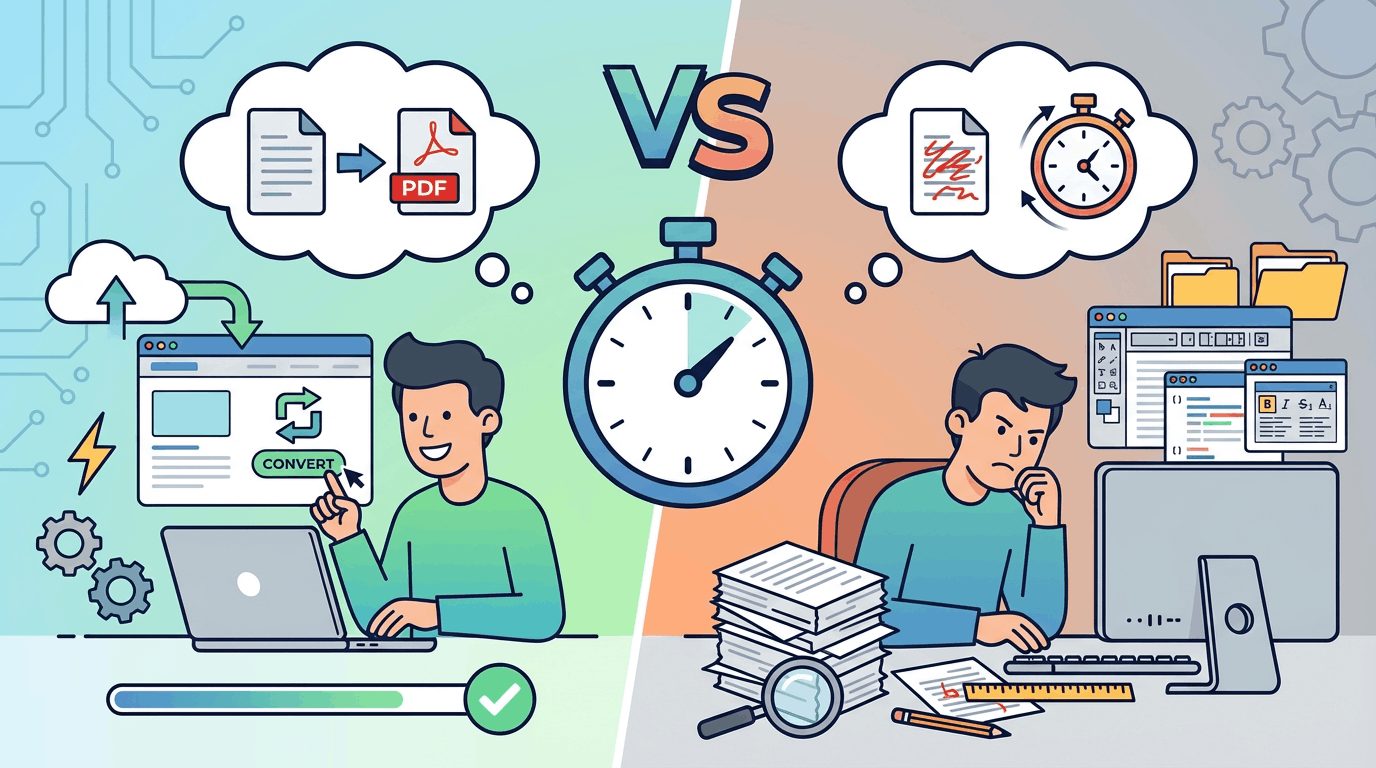
Almost all online converters convert in seconds, so you don’t waste hours waiting for a conversion or software download. The UIs are pretty much hassle-free: upload, select a format, and press convert.
Batch processing means you can process multiple files at a time, which is ideal for big projects or deadlines. For busy professionals, these time-saving features can accelerate daily workflow and alleviate frustration.
3. Format Versatility
Online converters cover every format imaginable, from popular ones like PDF, DOCX, JPG, and MP4 to more esoteric types. This flexibility allows you to adapt on the fly when clients or colleagues ask you to deliver in different formats.
Specialized converters can convert a scanned image into text, which makes the tools extremely flexible for multiple industries and scenarios.
4. Cost Savings
A lot of online tools are free, so you don’t need to purchase costly software or incur monthly subscription charges. Typically, you’ll get free trials for premium features, so you can test before you invest. Consequently, they can spend less on maintaining and updating software.
5. Simplified Sharing
After converting, files can be emailed, uploaded to cloud storage, or shared with a link. This makes collaboration easier as everyone can read the same format without compatibility hassles. Sharing options are usually integrated into the converter, making teamwork seamless.
The Conversion Process
File conversion online is converting one file format into another, typically via an online tool. This can be as flawed as translating between languages. Understanding each stage allows us to sidestep errors, direct the result, and squeeze the most out of these instruments. Here is a breakdown of the main steps:
- Submit your file with the on-screen upload or drop zone.
- Choose your desired format from all the supported types.
- Click to start the conversion and hang tight while it processes.
- Download your new file and check it for accuracy.
After each step is key. If you skip or rush, you don’t just lose data or meaning because file formats store information in their own special way. User input counts. Picking the appropriate format and verifying your settings lets you get what you want.
1. Upload
Most platforms are easy to upload to. All you have to do is click an upload button or drag your file onto the page. This trick worked for numerous file types, such as Excel, PowerPoint, TXT, and HTML. Before you kick off, ensure your file type is supported, or the tool will bounce it.
Most converters have size restrictions, so large files might have to be divided or compressed. Drag-and-drop can make this step quicker and less tedious, particularly if you have multiple files to process.
2. Select
You select the output format from a menu after uploading. This could be an extensive list, providing conversions from PDF to PNG or DOCX. Filters help pare down options. Be sure to understand what each format preserves. HTML, for example, keeps links, whereas TXT strips them out. A few services provide additional options, like compression level or resolution, which can impact the outcome.
3. Convert
Clicking the convert button initiates the real work. A progress bar or spinning icon indicates how far along things are. Conversion times are based on file size or server load.
A few, like Wistia, send you a notice, so you don’t have to twiddle your thumbs on the page. It’s recommended to pay close attention to any error messages, as these may indicate formatting problems or partial uploads.
4. Download
Once the conversion is complete, you may immediately download the new file. Just store it somewhere convenient to locate, like your desktop or a cloud folder. Verify the file to ensure the data appears correct and complete.
A few converters enable you to share the file right from the page, accelerating workflows across teams or departments. This breaks down data silos — information is no longer stuck in its form.
Beyond Basic Conversion
Online file conversion isn’t just about changing file format anymore. Advanced services serve the needs of users who manage large projects, need custom output, or need to maintain metadata.
They support numerous formats beyond simple conversion, such as .dgn, .dwf, .dxf, .jpg, .png, .shp, .pdf, and .svg. They assist in preserving the integrity of original documents, a must for both personal and professional use.
Users should note file size limitations, privacy issues, and output file retention. Some tools delete files within an hour or limit usage by size or frequency. Most services approach security by depending on trusted cloud service providers.
Batch Processing
Checklist for Batch Processing: * Process multiple files or folders in one batch.
- Stop wasting time with redundant, manual conversions.
- Best for big projects with bulky files.
- Search for folder selection and automation features.
- Watch for file size and quantity restrictions, typically 50-100MB per file.
- Have reliable connectivity and disk space.
- Check privacy and security assurances before uploading sensitive information.
Customization Options
Most converters allow you to customize options. Adjust resolution, image quality, or page layout for results that suit your requirements. Alter color depth, resize, or caption your images with pro-level controls.
Minor edits go a long way, particularly when you require files for unique applications. Mix and match to your heart’s content to create a beautiful conversation of workflow!
Metadata Retention
Metadata is important for document control and professionalism. Tools that retain metadata, such as authorship or creation date, aid in maintaining the authenticity of your documents.
That’s important for legal, academic, or archival work. Professional tools simplify checking and verifying that nothing essential is dropped. Don’t forget to check the output to make sure it didn’t lose any details.
API Integration
With API access, you can integrate file conversion straight into your own apps or systems. It enhances efficiency by eliminating manual processes. Through APIs, conversion services can integrate with other software, simplifying business workflows.
Study the documentation to use these features well, as setup can be technical but pays off with efficient automated results.
Navigating Formats
Online file conversion defines how we interact with digital content. Understanding file formats guides you in selecting the appropriate format for each endeavor.
This is all about managing formats, whether for personal or business data, when dealing with a variety of files such as documents, pictures, audio, and video. Online converters accelerate these processes and make them available to users worldwide.
Document
DOCX, PDF, ODT, everyday stuff, right? Online utilities can convert a scanned PDF into an editable text file through OCR, which is essential for digitizing legacy documents or forms.
They can convert a PDF to a Word document, preserving formatting and style relatively well.
Guaranteed good formatting means reports, contracts, and proposals look right and professional. Businesses rely on precise files; the correct converter eliminates back-and-forth and reduces mistakes. Tools support Excel, PowerPoint, TXT, and HTML, providing flexibility for different uses.
Image
JPEG: best for web photos and sharing
PNG: supports transparency, good for logos
TIFF: used in publishing, high-quality print
GIF: for simple animations and web graphics
BMP: basic, uncompressed, not ideal for web use
Online converters assist you in compressing image sizes for web pages or for printing. Certain utilities allow users to batch convert a great number of images, which is great for huge photo libraries. It is all about the format. A high-res image appears crisp in print, but a smaller file loads quickly on the web.
Audio
Spinning through MP3, WAV, and AAC formats leaves files playable on various players. Online services can extract audio from a video podcast or lecture notes.
Compression choices allow users to compress audio files with minimal loss in quality, which is useful for limited storage and bandwidth. Choosing your format helps it play back easily on phones, computers, and other devices.
Video
Converting video files, such as MP4, AVI, and MOV, makes them function on another app. Online converters can reduce file size for streaming or sharing by optimizing resolution and codec.
Several tools provide batch handling to process multiple videos simultaneously and conserve time. Choosing the proper codec and resolution is essential for crisp playback and efficient streaming.
Security and Privacy
Security and privacy are at the heart of online file conversion. A trusted converter can assist you in transforming files without concern, but there are dangers.
Malware, identity theft, and ransomware are genuine threats, particularly with free tools that duplicate real sites. Understanding the fundamentals of data security protects your identity and your company’s data.
Primary security features to look for in online converters:
- SSL encryption for data in transit
- Automatic file deletion after conversion
- Clear, transparent privacy policies
- Compliance with international data protection laws
- Reputable domain and verified ownership
- No forced account creation for basic use
- Regular third-party security audits
Data Encryption
SSL encryption is now an expectation of trusted online file converters. This ensures that your files are secure during upload and download. Encryption helps prevent unwanted parties from reading or stealing your data.
For instance, SSL/TLS encrypts the route between your browser and the service’s servers, preventing crooks from snooping on your files. Most reputable converters list their encryption in their FAQ or privacy sections to establish credibility.
Without encryption, they can enter and cause all kinds of damage, including data breaches and leaks of private content. This could leak personal photos, contracts, research, or whatever file you upload.
File Deletion
|
Service |
File Retention Policy |
Deletion Time |
|
Zamzar |
Temporary, deleted within 24 hours |
24 hours |
|
CloudConvert |
User-controlled, can delete anytime |
Up to 24 hours |
|
Smallpdf |
Deleted 1 hour after conversion |
1 hour |
|
FreeConvert |
Deleted automatically after 4 hours |
4 hours |
File retention is important. At least the most secure converters wipe files shortly after conversion, reducing the timeframe in which they can be stolen. As always, check the service’s file deletion policy before uploading sensitive material.
Certain services allow you to dictate when files get deleted, allowing you to delete immediately after use. This provides reassurance that your files don’t remain on third-party servers.
Server Location
Privacy depends on where your files are stored and processed. If a converter’s servers are outside your region, local laws might not protect your data. For instance, an online converter within the EU might receive certain protections under the GDPR, while servers elsewhere might not.
A few do allow you to pick the region where your data is stored, which is useful for compliance or peace of mind.
Using tools that make server location and legal compliance transparent minimizes risk and keeps your files where you’ve agreed they should be protected.
Quality and Fidelity
It’s all about quality and fidelity when it comes to online file conversion. Preserving the original appearance, audio, and functionality of files is essential for professional, collaborative, or transactional purposes.
The type of file, the tool you select, and your configuration all influence the final outcome. At times, the original file’s poor quality makes it difficult to achieve a clean conversion.
Other times, the tool itself can disrupt the process, which is important when you’re working with private or sensitive information. Below is a table that highlights the main factors that affect conversion quality and fidelity:
|
Factor |
Influence on Fidelity |
Example |
|
File Format |
Some cause more quality loss than others |
JPEG to PNG may lose or gain features |
|
Conversion Tool |
Software quality impacts output |
Basic vs. advanced PDF converters |
|
Original File Quality |
Poor input leads to poor output |
Low-res photo stays blurry after conversion |
|
Compression Settings |
High compression can lower fidelity |
MP3 at 64kbps vs. 320kbps |
|
Compatibility |
Not all formats support all features |
DOCX to TXT loses fonts and styles |
Resolution
For photos and videos, maintaining the appropriate resolution is essential. If you require crisp slides or clear footage, you want the output to be as good as the original. A few converters even allow you to select the output resolution, making them useful for some professional work.
Not all tools are created equal; certain tools do shrink files but damage fidelity. So, whether you require sharp photos for a report or clear video for a pitch, test out that converted file first. High fidelity matters when your work will be in front of other people.
Formatting
Document conversions frequently stumble on layout, fonts, and styles. For instance, a Word document that’s converted to PDF format should appear identical on any device. That’s why PDFs are a staple for legal documents.
The best converters will preserve tables, images, and text where they belong. Certain apps even allow you to customize how much formatting to preserve or discard. When layouts matter, like in contracts or reports, be sure to proof the new file for errors or strange formatting changes. One missing font, one shifted table, and you’re in trouble.
Compression
Compression assists in file shrinking for speedier uploads and lower storage. Too much compression can smear images or muffle sound. The appropriate trade-off between size and quality depends on your needs.
For streaming, a smaller file facilitates speed, but for archiving, fidelity rules. Most converters have options to fine-tune this balance. For large presentations or file sharing, select compression settings that retain clarity and fidelity. Remember, the ideal settings vary based on the file format.
Conclusion
Online file conversion keeps it simple. It saves time, avoids downloads, and works on multiple devices. Simple instructions and convenient utilities enable users to exchange files quickly, regardless of the format.
Several sites protect files, remove uploads, and use hard locks to prevent leaks. Great converters keep files crisp, regardless of format. They want slick conversions and secure downloads. A quick trial with a small file demonstrates whether a tool performs adequately.
For additional tips or to share your own story, see our other guides, or drop us a line. Trusted by tools that keep us all on track and get work done.